






How do you connect LogMeIn Resolve to Claude? Inside the Resolve MCP Connector


Written by:
Senior Product Marketing Manager
Published:
October 13, 2026
LogMeIn Resolve is now available as a connector in Claude, Anthropic's AI assistant. Built on the Model Context Protocol (MCP), an open standard for connecting AI assistants to the tools a team already uses, the connector gives Claude secure, permission-aware access to your Resolve account.
What does that mean in practice? A technician can ask, "which of our devices will go end-of-life in the next six months?" or "list the open critical tickets for this tenant" and get a live answer from their own Resolve data, without opening the console. It also behaves the way an IT team would expect: You sign in with your GoTo login, Claude can only do what you are already allowed to do in Resolve, and every action shows up in Resolve's audit log under your name. The rest of this post covers how the connector works, what it can do, and how to set it up.
TL;DR:
- LogMeIn Resolve is now a connector in Claude, built on the Model Context Protocol (MCP).
- Once connected, IT teams and MSPs can ask Claude to search devices, triage alerts and tickets, draft knowledge base articles, and start remote support sessions.
- Combine LogMeIn Resolve data with tools like Salesforce, Jira and Confluence in one conversation.
- Claude acts as you: GoTo sign-in, your existing LogMeIn Resolve permissions, and every action recorded in Resolve's audit log under your name.
What is MCP, and why does it matter for IT management?
The Model Context Protocol (MCP) is an open standard that lets an AI assistant like Claude connect to and work with an external application, such as LogMeIn Resolve.
That matters more for IT management than it might sound. Most AI features in RMM tools so far have lived inside the vendor's own console: a chatbot that summarizes a ticket, a button that writes a script. Those are useful, and LogMeIn Resolve has plenty of them, including Virtual Technician, AI Session Notes and Dynamic Insights. But by design, in-console AI only sees what is inside the console. An IT team's work spans many systems: the RMM, a PSA or ticketing tool, a CRM, Slack or Teams, Jira, spreadsheets and email, to name a few, and the exact mix looks different for an in-house IT department than for an MSP. The real cost is context switching and copy-pasting between them.
An MCP server flips that around. Instead of adding AI to Resolve, it puts LogMeIn Resolve inside the assistant your team already uses, next to everything else connected there. For example, in one Claude conversation, a technician can pull a device list from Resolve, cross-reference it with asset records in Salesforce, and open a Jira issue for the mismatches.
Put simply, an RMM with its own MCP server becomes part of your team's workflows instead of another tab to open.
What can the LogMeIn Resolve connector do in Claude?
The LogMeIn Resolve connector lets Claude look up and act on your Resolve data in plain language, across eight areas: accounts and tenants, devices, alerts, helpdesk tickets, assets and software, the Knowledge Base, Remote Execution results and Remote Support sessions. Claude can search, summarize, create and update records, and start remote support sessions, all within your existing Resolve permissions. Remote Execution is read-only: Claude can review runs and logs but cannot start one.
In MCP terms, a "tool" is one specific action the connector can perform on your behalf, such as searching devices, listing alerts, creating a helpdesk ticket, or publishing a knowledge base draft. The connector exposes a growing set of tools, grouped into eight functional areas that mirror the Resolve console. You can always see the current list on Resolve's page within Claude's directory or simply ask Claude which LogMeIn Resolve tools are available. You describe the outcome you want and Claude works out which tools to call, in what order, and with what filters.
Area | What Claude can do | Example prompt |
|---|---|---|
Accounts, tenants and users | List the Resolve accounts you can access, enumerate tenants, find end users | "Show the Resolve accounts I can access and list the tenants I have access to." |
Devices and device groups | Search and filter devices by name, OS, status, label, tenant, health severity or Zero Trust verification; search device groups; inspect a single device in full | "Which Windows 10 devices in the LATAM tenant have been offline for more than 30 days?" |
Alerts | List active or acknowledged alerts by priority, rule type, device or time window; acknowledge them | "Summarize this week's unacknowledged urgent alerts, deduplicated by device and rule." |
Helpdesk | List, search, read, create and update tickets; add and edit comments; pull full ticket history; look up helpdesk services and agents | "Export the full history of every ticket closed this quarter into a spreadsheet." |
Assets and software inventory | Search hardware and software assets; create, update and delete records; manage reference data such as categories, labels, locations, manufacturers, vendors, publishers and custom fields | "Compare the laptops in our Resolve asset inventory with the customer's Salesforce asset list and flag mismatches." |
Knowledge Base | Search, read, create, update, move and delete folders, documents and drafts; publish drafts | "Turn the resolution steps from my last ten VPN tickets into a KB article draft." |
Remote Execution | Review runs, per-host results and task logs (read-only: tools do not start a run) | "Show failed Remote Execution runs from the last seven days and tell me which hosts failed and why." |
Remote Support | List, start, inspect and close sessions; generate email invite links; send SMS invites | "Start an attended session for Tom and text him the invite." |
How do I find out what Claude can do in my LogMeIn Resolve account?
The easiest way to get oriented is to ask Claude directly. Try "What can you access in my LogMeIn Resolve account?" and Claude will list the areas it can reach and what it is allowed to do in each, based on your own permissions. Follow with "Given what you can see, what are the five most useful things I could ask you to do first?" and it will look at your environment, your open tickets and alerts, your device mix, and suggest a starting point. That second answer is a good place to find your first workflow.
What can IT teams & MSPs do with the LogMeIn Resolve connector?
The examples below come from a live LogMeIn Resolve demo environment: 74 managed devices spread across several MSP tenants, connected to Claude through the Resolve connector. Each prompt appears exactly as the technician typed it, followed by what Claude did and what came back.
1. End-of-life forecasting across the fleet
One prompt returns every device approaching end-of-life support, grouped by date, from live LogMeIn Resolve data. One CTO at a regional bank was able to accomplish this by stating what he wanted the connector to do: "Look at the device pipeline and tell me how many devices are approaching end of life in the next 6 months". It is a common request and a hard one for most RMMs to answer because the information is split between your device inventory and each vendor's lifecycle calendar.
This is where the connector helps. Claude can pull the inventory straight from Resolve, look up the end-of-support date for each OS build, and tell you which devices are running out of runway. One prompt replaces the manual cross-reference.
Prompt: In Resolve Northwind Demo, account give me all devices whose version is approaching EOL and end of support.
Claude pulled the full inventory, matched each OS against Microsoft and Apple's published end-of-support dates, and grouped the results by status. The first group is the one that gets attention: devices already past end of support, listed by OS version with the date support ended and every affected host underneath it.
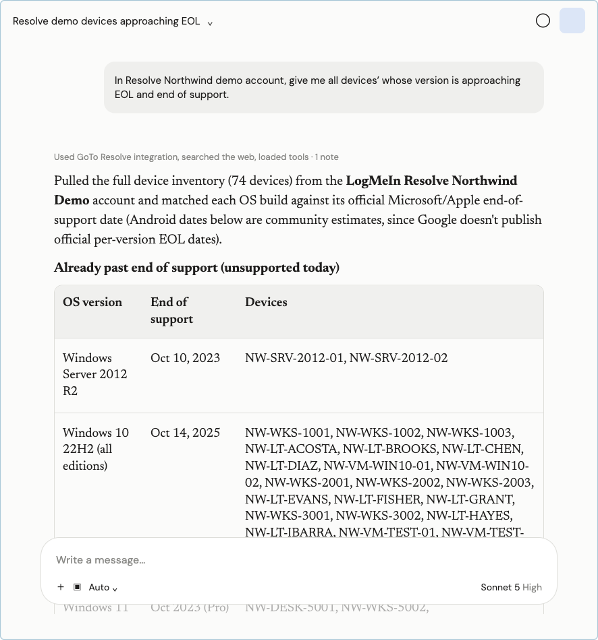
Figure 1. Claude pulls the device inventory through the Resolve connector and groups it by end-of-support date.
A follow-up prompt turned the same data into a live tracker that re-queries Resolve on demand. Each device shows its OS and build, a status badge, and the exact end-of-support date with days remaining. A filter narrows the view by device, tenant, or OS, and the refresh button pulls fresh data through the connector without rebuilding anything.
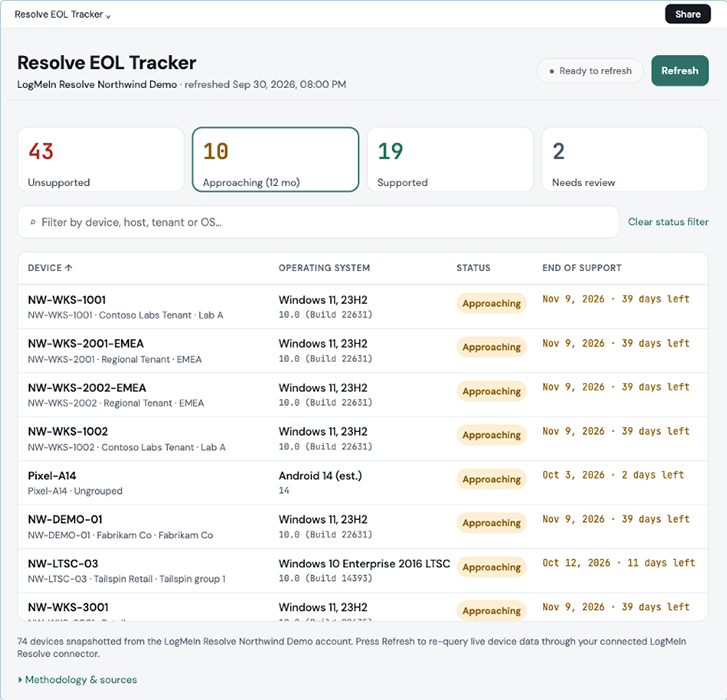
Figure 2. A refreshable EOL tracker built by Claude on top of the connector: 43 devices already unsupported, 10 approaching within 12 months.
What took the CTO's team a spreadsheet and an afternoon now takes two prompts, and the answer stays current because the tracker reads from Resolve rather than from a snapshot. The same pattern, (pull the data, enrich it, hand back something you can act on), is what the next example applies to alerts.
2. A deduplicated alert digest
One prompt collapses repeated alerts into a single deduplicated list with an occurrence timeline.
Several MSPs we spoke with raised the same problem: too many alerts, most of them repeat, and no quick way to tell which alert matters. The console cannot fix this on its own because the same condition on the same device can fire several times a day, and each occurrence lands as its own line.
The connector sidesteps the console entirely. You can ask Claude to pull the alerts from Resolve, collapse the duplicates, and hand you a clean summary you can act on. One prompt does the work that would otherwise mean exporting, filtering, and sorting by hand.
Prompt: List all triggered alerts of the last 7 days, deduplicate, and create an artifact for it.
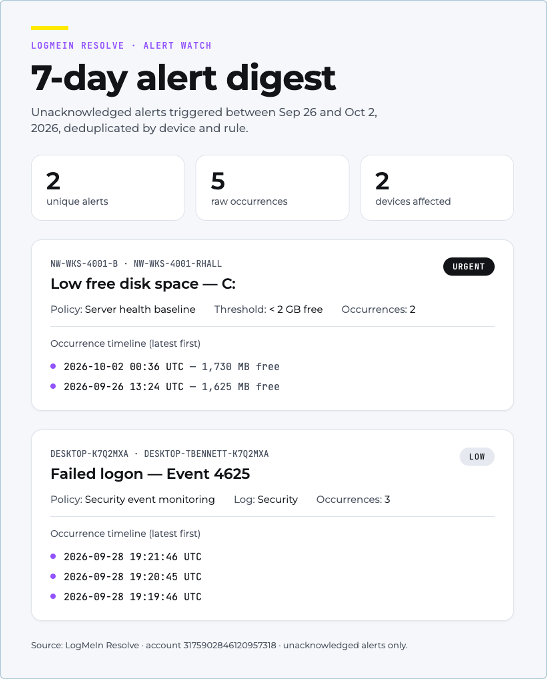
Figure 3. Five raw alert occurrences collapsed to two unique alerts, with the occurrence timeline and policy context for each.
Claude pulls the unacknowledged triggered alerts from Resolve, groups them by device and rule, and returns a single digest. In the example above, five raw occurrences across two devices collapse into two real issues: a low-disk-space alert on a workstation flagged as urgent, and a run of failed logon events on another device within the same two-minute window. Each entry shows the policy that triggered it, the threshold, how many times it fired, and a timeline of occurrences, so you can tell at a glance whether something is a one-off or a pattern. The result is something you can share with the team or drop straight into a ticket.
3. Cross-tool workflows
The examples above stay inside Resolve. Things get more interesting when LogMeIn Resolve sits in the same conversation as the rest of your stack. Because MCP is a shared standard, Claude can read from one connector and write to another in a single pass, with no middleware, no API keys to wire up and no integration project. Below are two workflows that customers asked us for, each of which used to mean a manual export, a custom script, or not bothering.
Close the loop between support and the CRM. A European MSP wanted every remote support session reflected on the customer record, so that account managers could see support activity without asking. With LogMeIn Resolve and Salesforce both connected, the prompt is: "For every remote support session I ran this week, log a summary on the matching Salesforce account." Claude lists the week's sessions in Resolve, pulls each session's details, matches the end user to a Salesforce account, and writes a dated activity note to each one. The same pattern answers a related request from a professional-services customer: "Update Salesforce case #00123 with the details of my last remote session with this user."
Turn tickets into knowledge and engineering work. Two prompts from customers show what this looks like on the helpdesk side.
Ask "Find helpdesk tickets this month that mention the same printer error and open one Jira bug with the affected devices attached," and Claude searches Resolve tickets by keyword, groups the matches by error string, pulls the linked devices, and opens a single Jira issue with the device list and ticket references in the description. Ten scattered tickets become one actionable bug.
Ask "Turn the resolution steps from my last ten VPN tickets into a KB article draft in Resolve and a Confluence page," and Claude reads the ticket histories and comments, identifies the steps that actually fixed the problem, saves a draft to the Resolve Knowledge Base for review, and publishes the same content to Confluence so the wider team can find it. The fix your team already figured out stops living in closed tickets.
In every case, the technician's Resolve permissions still apply, actions in Resolve can be set to require confirmation, and the result shows up in Resolve's audit log under their name.
How is the LogMeIn Resolve connector secured?
Claude gets no more access than you have, and everything it does is logged under your name.
- Sign-in: You sign in with your GoTo account (via OAuth) and approve access. Claude never sees your password, and there are no API keys to manage.
- Permissions: The connector acts as you, so it can't do anything you can't do in the Resolve console. Tenant scoping and plan limits still apply.
- Changes: Anything that creates, updates, or deletes data is flagged as a write action, and you can require a confirmation step before each one.
- Audit trail: Actions appear in LogMeIn Resolve's normal audit logs as yours. There is no separate "AI user."
- Storage and control: The connector does not store your Resolve data. You can disconnect at any time, and admins can revoke access directly from Claude.
How to set up the LogMeIn Resolve Claude Connector
Owner step (Team and Enterprise only)
- In claude.ai, open Organization settings then Connectors.
- Find LogMeIn Resolve in the directory and enable it for the organization.
- Members can now connect individually. Pending member requests appear under Requested by your team.
Connect on claude.ai or Claude Desktop
- Open Customize then Connectors.
- Search for LogMeIn Resolve and click Connect.
- If you are not an Owner, you will see a Request button instead of Connect; click it and your Owner is notified.
- Claude shows a notice that this is a community connector, meaning it is published and supported by LogMeIn rather than reviewed by Anthropic. Click to continue.
- Sign in with your GoTo credentials at identity.goto.com and allow access.
- Back in Claude, start a new conversation. Resolve's tools are available; Claude uses them when your request calls for them.
Connect on mobile
Connect once on claude.ai or Desktop; the connection follows your account to the mobile app.
Or open the LogMeIn Resolve connector directly in the Claude directory: https://claude.ai/directory/logmein-resolve
How to get started with LogMeIn Resolve MCP Connector
Connect LogMeIn Resolve to Claude from the Claude directory and try one of the prompts above on your own data. If you are not using LogMeIn Resolve yet, you can learn more about LogMeIn Resolve here. Missing a workflow you'd like the connector to handle? Tell us from inside the Resolve console: Open the help pane, go to Resources, and click "send feedback".
For any questions or to report a problem, visit LogMeIn Resolve support, and mention "Claude connector" in the subject line.